QuickBooks Order Management for Distributors
How distributors run order management on QuickBooks: where it fits, the gaps between Online and Desktop, and how to automate customer order processing.
For a lot of distributors, QuickBooks is the whole back office — items, pricing, invoicing, reporting. The question is how well it handles order management, and the honest answer is: it depends on the edition, and on one gap that is the same across all of them.
What QuickBooks does well
For small and mid-sized distributors, QuickBooks covers the essentials: an Item list, customer records, customer pricing (price levels in Desktop, price rules in QuickBooks Online Plus and Advanced) and — on Desktop Premier and Enterprise — units of measure and a true Sales Order transaction, with Enterprise's Advanced Inventory add-on for multiple warehouses. It is capable enough that many distributors never outgrow it, which is exactly why the order desk keeps running on it.
Where the edition matters
The important split is the sales order. QuickBooks Desktop Enterprise and Premier have long had one, and integrations can create it. QuickBooks Online now does too, on Plus, Advanced and Intuit Enterprise Suite or with the Inventory add-on — but on other plans it still works through estimates and invoices, and even where Online has sales orders, Intuit has not yet opened them to outside integrations, so automated orders arrive as estimates or invoices. If you are comparing how to structure order management, that decides a lot — so name your edition and plan before choosing tools or workflows around it.
The gap in every edition: intake
Whatever edition you run, nothing in QuickBooks watches your order inbox and turns what arrives into orders. Those come as email bodies, PDF purchase orders and spreadsheets — and someone has to read each one, match it to the Item list, and create the transaction. QuickBooks Online's Intuit Assist can draft an estimate or invoice from an email you forward, one at a time, but at a distributor's daily volume the intake step is still where order management on QuickBooks quietly turns back into manual data entry.
Closing the gap with automation
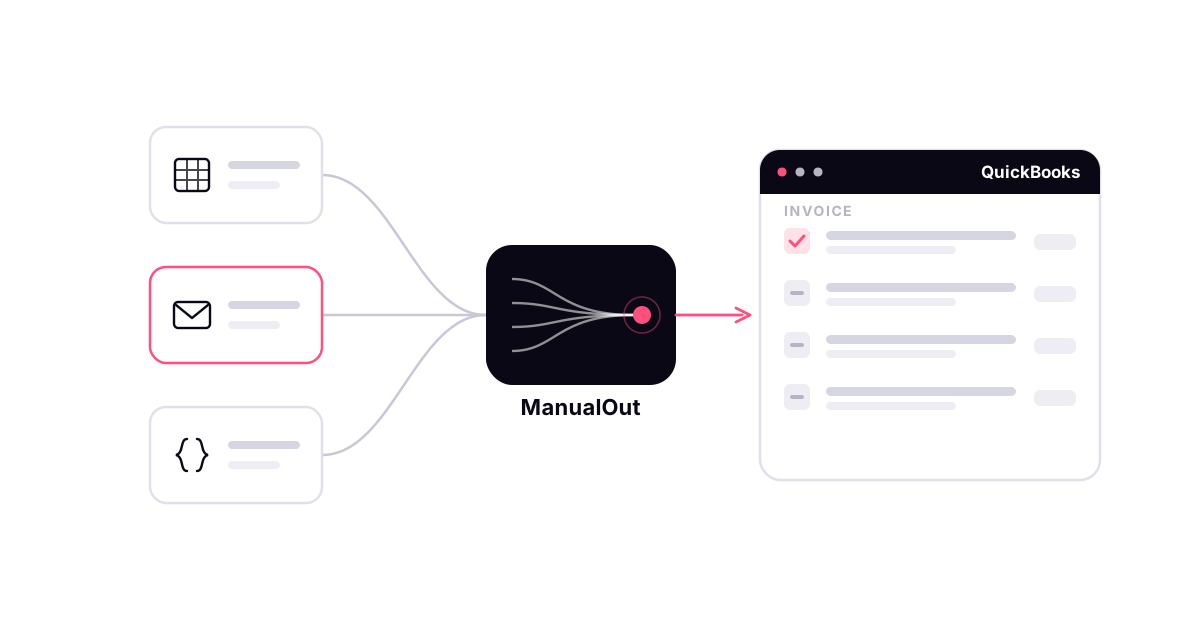
The fix is not to replace QuickBooks; it is to automate the intake in front of it. An order-intake layer reads each incoming order, matches the lines to your Item list and pricing, and creates the right transaction — a sales order in Desktop, an estimate or invoice in Online. That is what ManualOut does for QuickBooks order entry automation, with a person reviewing anything it cannot resolve. The step-by-step is in how to automate order entry in QuickBooks.
What to keep in-house
Keep QuickBooks as your system of record and keep judgement with your team. Automation should handle the reading, matching and typing, and hand your desk the exceptions — not make pricing or credit decisions on its own. If you are weighing this against other options, whether order automation will work with your ERP covers what to test, or book a demo to try it on your own orders.
QuickBooks and Intuit are trademarks of Intuit Inc. ManualOut is an independent product and is not affiliated with or endorsed by Intuit Inc.
Frequently asked questions
Is QuickBooks good for order management?
QuickBooks handles items, pricing, invoicing and sales orders well for small and mid-sized distributors — sales orders on Desktop Premier and Enterprise, and on QuickBooks Online Plus and Advanced or with the Inventory add-on. Its gap is order intake: nothing in it watches your order inbox and processes the email, PDF and spreadsheet orders customers send. Intuit Assist in QuickBooks Online can draft an estimate or invoice from an email you forward, one at a time, so at a distributor's volume that step stays manual unless you add automation in front of it.
What is the difference between QuickBooks Online and Desktop for orders?
QuickBooks Desktop Enterprise and Premier have long had a true Sales Order transaction, and Desktop Enterprise with the Advanced Inventory add-on handles multiple warehouses. QuickBooks Online added native sales orders more recently — on Plus, Advanced and Intuit Enterprise Suite, or with the Inventory add-on — but outside integrations cannot create them yet, so automated orders arrive there as estimates or invoices. Desktop Premier and Enterprise also have units of measure, which QuickBooks Online does not. The right order-management approach depends on which edition and plan you run.
How do distributors automate customer order processing in QuickBooks?
By putting an order-intake layer in front of QuickBooks that reads incoming orders from every channel, matches lines to the Item list, applies pricing, and creates the transaction — with a person reviewing exceptions. QuickBooks remains the system of record.