How to Automate Order Entry in QuickBooks (Online and Desktop)
How to automate order entry in QuickBooks Online and Desktop: turn email, PDF and spreadsheet orders into QuickBooks transactions without rekeying them.
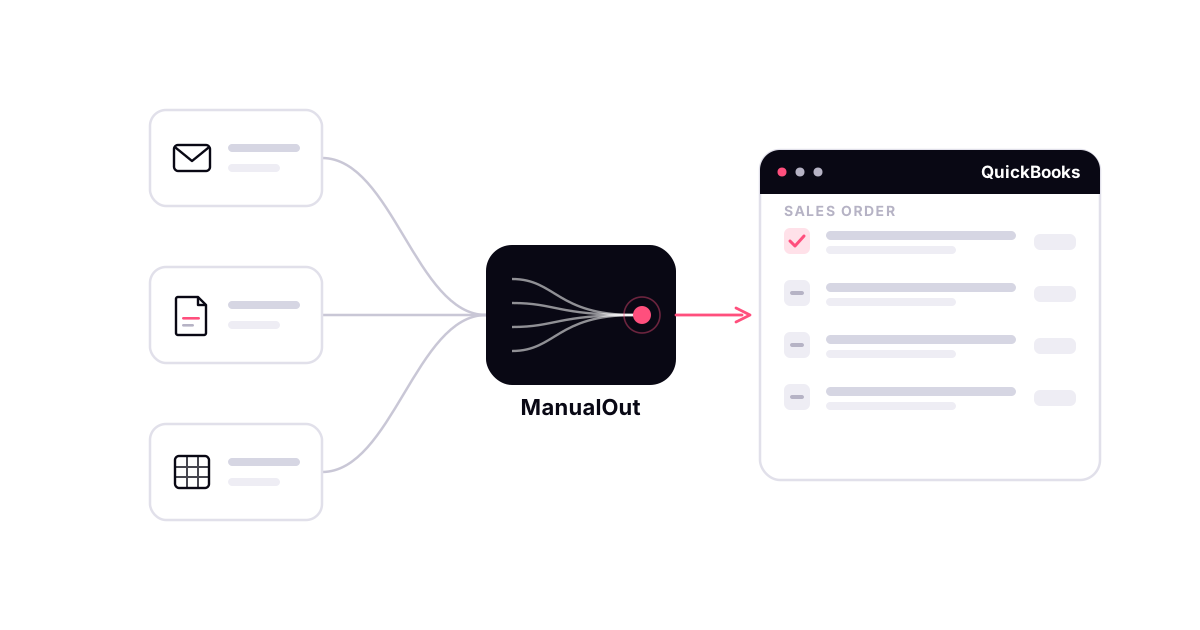
QuickBooks runs the books for many small and mid-sized distributors — but for most of them it still waits for someone to type each customer order in. Orders arrive as email, PDFs and spreadsheets, and a person reads them, matches every line to the Item list, and creates the transaction by hand. This is a practical guide to automating that work on both QuickBooks Online and QuickBooks Desktop.
First, know which QuickBooks you run
The single most important detail for order entry is the transaction itself, and it differs by edition and plan. QuickBooks Desktop Enterprise and Premier have a true Sales Order, which automation can create directly. QuickBooks Online now offers native sales orders on Plus, Advanced and Intuit Enterprise Suite, and on Simple Start and Essentials with the Inventory add-on — but Intuit has not yet opened them to outside integrations, so as of October 2026 automated orders arrive in QuickBooks Online as the estimate or invoice you already use. Establish your edition and plan first.
What "automating order entry" means here
QuickBooks itself offers one partial option: in QuickBooks Online (US), Intuit Assist drafts an estimate or invoice from a customer email you forward or a document photo you upload, for you to review. It handles one order at a time and does not watch your order inbox, so for a distributor's daily volume, automation means adding an order-intake layer in front of QuickBooks: software that reads every incoming order, does the matching a person would do, and creates the right transaction. QuickBooks keeps doing inventory, invoicing and accounting; the intake layer removes the typing — it automates QuickBooks data entry your team otherwise does by hand. ManualOut's QuickBooks order entry automation works exactly this way.
You will see this called a few different things — QuickBooks order automation, automated order processing in QuickBooks, or simply automatic QuickBooks order entry. They all describe the same outcome: an incoming customer order becomes a finished QuickBooks transaction without anyone rekeying it.
What QuickBooks order processing automation handles
A capable intake layer covers the same ground your order desk does: it captures the order from whatever channel it arrived on, extracts the customer, PO number, items, quantities and units, matches each line to your QuickBooks Item list, and applies the customer's price level or price rule, class or location. What it produces is a transaction ready for QuickBooks — a sales order in Desktop, or an estimate or invoice in Online. Done properly, QuickBooks customer order automation covers the whole path from the message a customer sent to the transaction on your books.
How it connects
QuickBooks Online connects through Intuit's API; QuickBooks Desktop connects through the Web Connector. You do not need a certified marketplace app to benefit — what matters is that the intake layer maps to your Item list, the unit you sell each item in, and your pricing so the transaction it creates is one QuickBooks accepts cleanly.
Keep a person on the exceptions
Automation is only useful if you can trust what reaches your books. The right model is human-in-the-loop: clean, confidently matched orders are created automatically, and anything ambiguous — an unfamiliar item, a customer code with no match, a quantity that looks wrong — is flagged for review. Your team approves exceptions instead of typing every order.
How to start
Start with one channel — usually the shared order inbox — and a sample of real orders. Run them through the intake layer and compare what it prepares against what your team would have keyed. If it matches, widen it channel by channel. To see it on your own orders, book a demo. For the bigger picture, read QuickBooks order management for distributors.
QuickBooks and Intuit are trademarks of Intuit Inc. ManualOut is an independent product and is not affiliated with or endorsed by Intuit Inc.
Frequently asked questions
Can you automate order entry in QuickBooks?
Only partly with QuickBooks alone: in QuickBooks Online (US), Intuit Assist can draft an estimate or invoice from a customer email you forward or a photo you upload, one at a time, for you to review. To automate a distributor's order entry at volume, you add an order-intake layer in front of QuickBooks that reads every incoming order, matches each line to your Item list, applies the customer's pricing, and creates the transaction. QuickBooks stays your system of record.
Does QuickBooks Online have sales orders?
Yes, on some plans: Plus, Advanced and Intuit Enterprise Suite, and Simple Start and Essentials with the Inventory add-on. But Intuit has not yet opened them to outside integrations — as of October 2026 its API cannot create one — so an automation tool creates an estimate or an invoice in QuickBooks Online, which your team can convert. QuickBooks Desktop Enterprise and Premier have long had a true sales order that integrations can create.
How does automated order entry reduce errors?
Because items, units, quantities and prices are matched to your QuickBooks records instead of retyped from a PDF or email. The order is checked before it becomes a transaction, and anything uncertain is flagged for a person rather than guessed.
Is QuickBooks order automation the same as order processing automation?
They describe the same thing from different angles. QuickBooks order automation — also called automated order processing — covers the whole path: reading the incoming customer order, matching it to your Item list and pricing, and creating the QuickBooks transaction. Plain order entry just captures the data; full customer order automation also matches and validates it, and routes anything uncertain to a person.